If you’re learning cybersecurity, experimenting with Linux, or simply looking for a safe space to test new tools, setting up a virtual machine is one of the best ways to get started.
In this guide, go through how to set up Fedora Linux 38 inside Oracle VirtualBox step by step.
By the end of this installation guide, you’ll have a fully functional Fedora virtual environment that’s ready for labs, software testing, or system administration practice.
Feel free to download the comprehensive PDF Installation guide here.
What You’ll Need
Before starting the installation, make sure you have:
- A computer with at least 50 GB of free disk space and 8 GB of RAM.
- Virtualization is enabled in the BIOS or UEFI settings.
- Oracle VirtualBox 7.2.2 is installed on your host system.
- A stable internet connection to facilitate updates after installation.
Tip: To check if virtualization is enabled on Windows, open Task Manager > Performance tab > CPU > look for Virtualization: Enabled.
Installing Fedora Linux 38 in VirtualBox – Step-by-Step Walkthrough
Step 1: Download Fedora 38
- Visit the official Fedora archive: Fedora 38 ISO Download.
- Download Fedora Workstation
Locate and click the file named: Fedora-Workstation-Live-x86_64-38-1.6.iso. The download will start automatically.
Allow the download process to complete. The ISO file size is approximately 2 GB.
Tip:
It’s good practice to verify the integrity of the downloaded ISO file to ensure it hasn’t been corrupted or tampered with.
Follow the instructions here: How to Verify Fedora ISO Integrity (Checksum Tutorial)
Note:
Always download Fedora ISOs from official Fedora repositories or mirrors. Avoid third-party sites, as unofficial ISOs may contain modified or unsafe files.
Step 2: Create and Configure a Virtual Machine
1. Open Oracle VirtualBox and click New.
- Launch Oracle VirtualBox Manager from your Start Menu, Applications, or desktop shortcut.
- The main VirtualBox interface will appear.
2. Create a New Virtual Machine
- Click Machine > New (or the New button on the toolbar).
- This will open the New Virtual Machine wizard.

3. Specify the following details in the following sections of the installation wizard:
Virtual machine name and operating system
- VM Name: Fedora 38 Workstation (or any name you choose)
- ISO Image: Choose the path to the destination where your iso image is stored.
- OS: Linux
- OS Distribution: Fedora
- OS Version: Fedora (64-bit)

Hardware
- Base Memory: 4096 MB (Allocate 4 GB of RAM)
- Processors: 2 (Allocate 2 CPUs)
Warning:
Do not assign all available RAM or CPU cores to the virtual machine. Always leave enough resources for your host operating system to function properly.

Hard Disk
- Choose Create a Virtual Hard Disk Now
- Disk Size: 50 GB

4. Finish
Click on Finish to complete the New Virtual Machine setup.
Optional Task: Improve VM Performance and Usability
Before launching Fedora, make two small configuration tweaks in VirtualBox to improve the user experience.
1. Enable Bidirectional Clipboard
- In the VirtualBox Manager, select your Fedora VM and click Settings > General > Advanced.
- Under Shared Clipboard, select Bidirectional.
- Under Drag and Drop, select Bidirectional.
This allows you to copy, paste, and move text or files between your host and Fedora VM.

2. Increase Video Memory
- Go to Settings > General > Screen.
- Under Video Memory, drag the slider to 128 MB.
- Click OK to save changes.
This provides smoother graphics and avoids display issues during installation or when resizing the VM window.

Step 3: Launch the Fedora Virtual Machine
In this task, you’ll start the Fedora 38 virtual machine from the ISO image you configured in VirtualBox. This process will boot Fedora into a live environment and begin installation.
1. Start the Virtual Machine.
- In the VirtualBox Manager window, select the Fedora VM you’ve just created.
- Click the Start arrow on the toolbar to launch it.
2. Fedora boot menu
- The VM will load the Fedora boot menu. Use the up arrow to select Start Fedora-Workstation-Live 38

3. Install Fedora
- When the GUI launches, select Install Fedora from the “Welcome to Fedora!” dialogue box.

- In the WELCOME TO FEDORA 38 page, choose English as your language, then click on Continue.
- On the Installation Summary page, under SYSTEM, click Installation Destination.

- Leave the default and click DONE.

- Click Begin Installation.

4. Finish Installation
- Once the installation is complete, click Finish Installation.
- Close the window and shut down the VM. (Click on File > Close. In the pop-up that appears, choose Power off the machine.
5. Detach the Fedora ISO
You need to detach the Fedora ISO to prevent the installer from reloading during the next boot. To do this:
- Go to Settings > Storage.
- Under Controller: IDE, click the Fedora ISO.
- Under Attributes > Optical Drive (click on the disk image) > Click Remove Disk From Virtual Drive.
- Click OK to save.

Step 4: Post-installation Configuration
In this task, you’ll complete Fedora’s initial setup, update the system, and prepare the environment for future labs and configurations.
1. Restart the Fedora Virtual Machine.
- In VirtualBox, select your Fedora VM and click Start.
- Fedora will boot into the new installation.
2. Complete the Initial Setup Wizard.
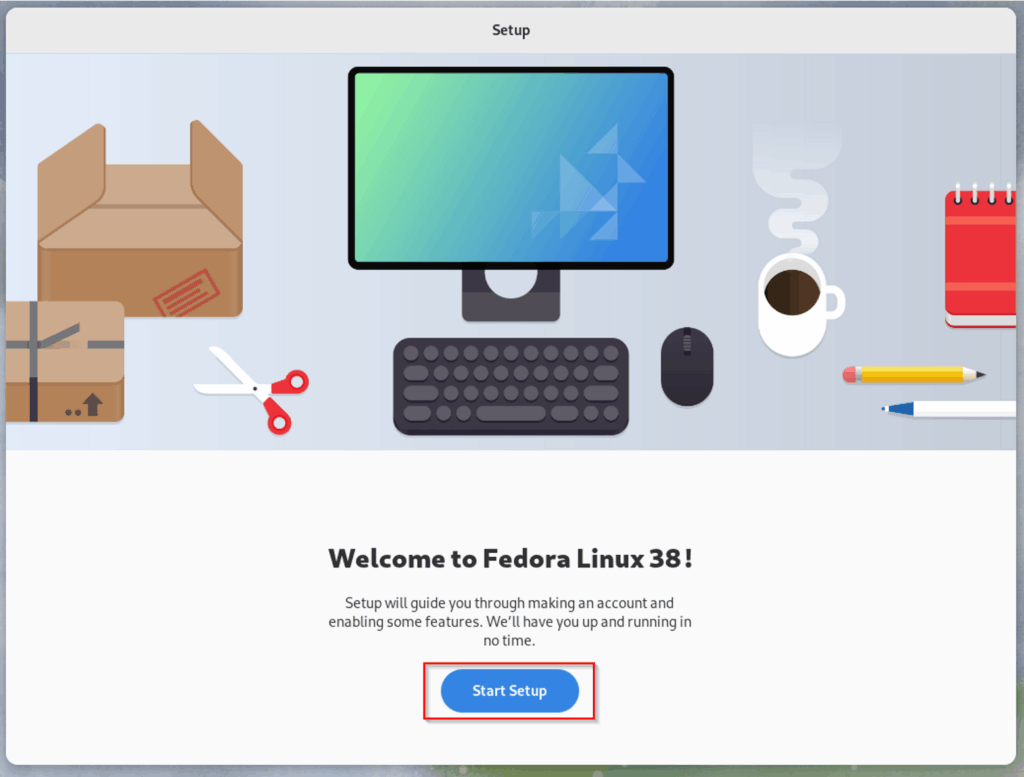
Welcome to Fedora Linux 38
Click Start Setup.

Privacy
Turn Off:
- Location Services
- Automatic Problem Reporting
Then click Next.
Third-Party Repositories
Click Next. (Do this if you will not require third-party repositories)
Online Accounts
Click Skip.
About You
Enter:
- Full Name
- Username
Click Next to continue.
Password
Create a strong password, then click Next.
Setup Complete
The initial setup is complete. Click on Start Using Fedora Linux.

Optional:
On the Welcome to GNOME44 screen, you may accept or decline the tour of the GUI.

3. Launch a Terminal
To open the terminal:
- Select Activities in the top-left corner.
- In the search box, type Terminal.

- Click on Terminal to launch the application.
4. Update the System
- Before installing any additional software, update Fedora to ensure it is fully patched and secure.
Note:
Fedora is a Red Hat-based distribution, which means it doesn’t use apt for package management (like Ubuntu or Debian).
Instead, Fedora uses dnf, which has a similar syntax to apt but uses slightly different commands.
- Run the following command to update all packages:
sudo dnf upgrade -y
Since this is the first update on a new system, the process may take several minutes to complete.
- Once the update completes, reboot the system to apply changes:
sudo reboot now
Step 5: Install VirtualBox Guest Additions
In this task, you’ll install VirtualBox Guest Additions to improve Fedora’s integration with your host system.
These tools enable features such as full-screen display, bidirectional clipboard sharing, and drag-and-drop support.
1. Check the Current Kernel Version
- Open a terminal and list the current kernel version by running the following in the terminal:
uname -r
You’ll need this information to install the correct kernel headers.
2. Install the Required Dependencies
Install the packages needed to compile and build the Guest Additions module:
sudo dnf install gcc make perl kernel-devel-$(uname -r) -y
3. Insert the Guest Additions CD Image
In the Fedora VM window, go to the VirtualBox menu and select:
Devices > Insert Guest Additions CD image…
VirtualBox will automatically mount the CD image inside the Fedora environment.
- If a prompt appears, click Run then enter your password.

- If no prompt appears, you can manually mount and run it using:
sudo /run/media/$USER/VBox_GAs*/VBoxLinuxAdditions.run
Wait for the installation to complete. This may take a few minutes.
4. Confirm Clipboard and Drag-and-Drop Settings
- With the virtual machine still running, go to the Devices menu, and confirm that bidirectional is set for both the Shared Clipboard and Drag and Drop options.


This ensures that you can copy text and move files between your host machine and the Fedora VM.
5. Reboot the System
Once installation finishes, reboot Fedora to apply the changes: sudo reboot now
6. Verify Guest Additions Functionality
After logging back in:
- Try copying text from your host system and pasting it into Fedora.
- Switch to Full Screen Mode (Host Key + F, usually Right Ctrl + F) — Fedora should resize automatically.
- Optionally, drag and drop a small file between host and guest to confirm the feature works.
Tip:
If Fedora doesn’t resize automatically or clipboard sharing doesn’t work, reinstall the Guest Additions or confirm your Video Memory is set to 128 MB under
Settings > Display > Screen.
Warning:
Avoid shutting down the VM during installation since this can corrupt the Guest Additions and require reinstallation.
Fedora is now fully integrated with your host environment. You can use full-screen mode, share your clipboard, and drag-and-drop files easily, thus improving your workflow for labs, documentation, and everyday tasks.
Verification
Confirm that Fedora and VirtualBox integration are working properly.
1. Check Fedora and Kernel Version
cat /etc/os-release
uname -r
You should see Fedora 38 and a valid kernel version.
2. Test Internet Connectivity
ping -c 4 google.com
If you receive replies, the network connection is working.
3. Verify Guest Additions
- Switch to Full Screen Mode (Host + F). The display should resize automatically.
- Test copy and paste between your host and Fedora VM.
If these work, Guest Additions are correctly installed.
Tip:
If full-screen mode or copy/paste doesn’t work, reinstall Guest Additions and confirm your Video Memory is set to 128 MB under Settings > Display > Screen.